
| Reader situation | Where to look | Planning use |
|---|---|---|
| Deciding whether to install | The App Store listing’s screenshot carousel | Judge the interface, level layout and visual clarity before committing |
| Judging the art and parts | Close-ups of contraptions and backdrops | Check that moving parts are readable and the style suits you |
| Wanting to see motion | Trailer and gameplay video | Use stills for layout, video for how a build behaves |
| Preparing your own store images | App Store Connect reference pages | Follow the platform’s current screenshot rules before exporting |
The store rules behind the listing images are documented in Apple’s App Store Connect screenshot specifications.
Machineers screenshots are best read as a quick way to judge a puzzle game’s levels, parts and look before installing. Official stills appear on the App Store listing, and this page explains what to look for in each kind.
For the wider picture of the title, the machineers game page covers what the game is. This page stays focused on the visuals: how to read a screenshot, what each type tells you and when a still is not enough.
If you are deciding whether to install
Store screenshots are the fastest check on a puzzle game, because they show the interface and a typical screen in one glance. The App Store listing is the place to start, since developers manage those images themselves through App Store Connect, which has a dedicated section for managing App Store assets.
Official App Store screenshots
The carousel on a listing is a curated sequence, so it shows the developer’s chosen best foot forward. Treat the first image or two as the headline view and the later ones as supporting detail. Swipe through the whole set rather than judging by the first frame.
This approach suits anyone who wants a low-effort check before downloading. Its limit is that stills cannot show how a build behaves once it runs, so a screenshot that looks tidy says little about how a solution plays out.
What to check in each screenshot
A useful puzzle-game screenshot answers a few practical questions. Use this short checklist when scanning a listing:
- Goal clarity: look for a visible target or objective, because a level you cannot read at a glance will feel harder than it is.
- Available parts: check whether the tools you build with are shown separately from the play area, which signals a tidy interface.
- Screen density: on a phone, crowded layouts can make small parts hard to place, so favour screenshots with generous spacing if you play on a small screen.
- Progression cues: a level number or similar marker suggests how the game paces its challenges.
If you care about the art and the parts
Players who choose games by look should study the close-up images, since a puzzle about building depends on parts being easy to tell apart. Three kinds of image answer different questions about the art.
Mechanical parts and contraptions
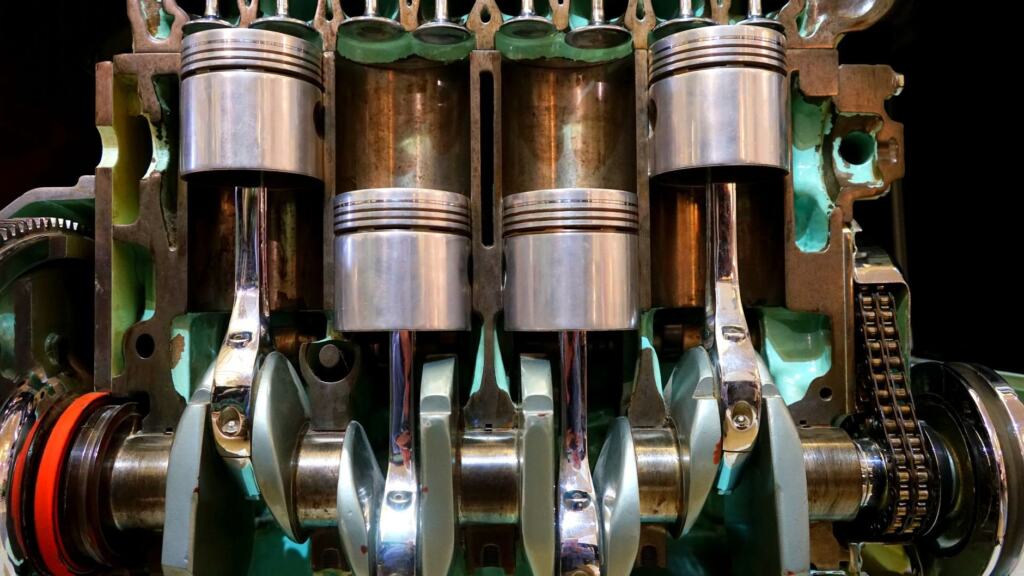
When a screenshot shows moving parts such as gears and pistons, judge them on legibility. Each part should have a distinct silhouette so a built contraption can be read like a diagram. Strong contrast between parts and background helps, because players need to trace how one piece drives the next.
This view suits players who enjoy engineering-style puzzles and want to confirm the parts look purposeful rather than decorative. The caveat is that a handsome still can hide fiddly controls, so pair it with gameplay footage.
Environment backdrops
Backdrops set the mood and, in a physics puzzle, also affect readability. A busy industrial scene behind the play area can look striking but compete with the parts in front of it. Look for whether the background recedes through softer colour or lower contrast, leaving the buildable area clear.
This matters most for players who spend long sessions on one level, where visual clutter becomes tiring. If the backdrop is the main selling point of a screenshot, check that a second image shows the play area equally clearly.

Concept art and the creation process
Concept sketches show how a visual style was designed before it was polished into final assets. They suit readers interested in game art as a craft and in how shapes and silhouettes are planned. They are not a substitute for in-game captures, because a sketch shows intent rather than what appears on a player’s screen.

If you want to see the game moving
Stills answer “what does it look like”, while motion answers “how does it behave”. Puzzle games built on physical contraptions are the clearest case where the two diverge, so a second look in a different format pays off.
Trailer and gameplay video
The machineers trailer page is the better companion when a screenshot leaves you unsure how parts interact. Use stills to judge layout and style, then use video to judge timing and how a finished build runs. This pairing works well for anyone who dislikes surprises after installing.
Event appearances
Industry showcases give another view of how a game is presented to the public. The machineers nordic game page covers that appearance, which suits readers who want context on how the game has been shown beyond its store listing.
If you are preparing your own store images
Developers and bloggers who want to publish game stills on a store need the platform’s rules first. Apple’s App Store Connect help includes a screenshot specifications reference within its app information section, plus a section on managing App Store assets. Those pages are the authority for required formats and the correct way to upload images.
Following the specifications
Check the reference before exporting, because requirements can change and a mismatched image may be rejected at upload. This is a task for whoever controls the listing, not for players. Reviewers and press writers should instead rely on images supplied by the studio.
Managing assets over time
Because screenshots are managed assets, a listing can be updated as a game changes. A reader comparing an older screenshot with the live listing should trust the live listing for the current look. Choose screenshots that show real in-game screens, so the store image matches what players see after download.
Frequently asked questions
| Question | Answer |
|---|---|
| Where are the official Machineers screenshots? | On the game’s App Store listing, in the screenshot carousel. Developers manage those images through App Store Connect. |
| Are the photographs on this page Machineers screenshots? | No. They are illustrative stock images of tablets, store listings and mechanical parts, and each caption says what is actually shown. |
| Where can the required screenshot specifications be found? | Apple lists them in the screenshot specifications reference within App Store Connect help, which is the place to check current requirements. |
| Do screenshots show how the game plays? | Not fully. Stills show layout and style, so use video to judge how a build behaves in motion. |