
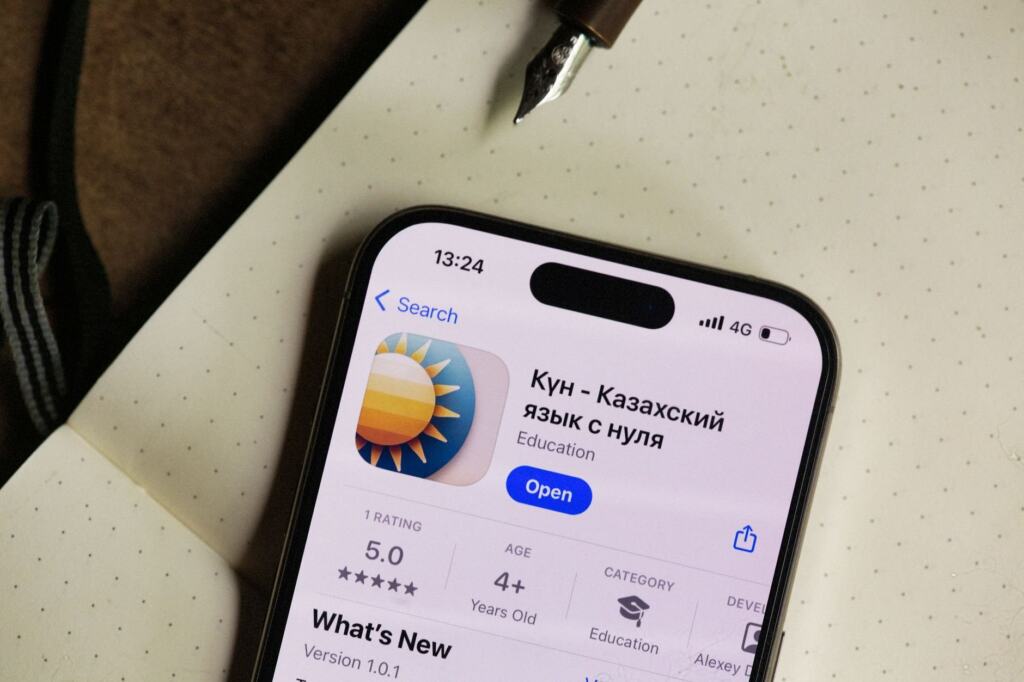
A player searches the App Store for Machineers, finds nothing and assumes the game was pulled. Is Machineers still available? A blank search result does not settle it. Check the exact listing, your purchase history and the studio’s own channels first.
This page works through that check in order, and the machineers game overview covers what the game is.
Why an empty search is not proof of removal
An empty result usually means the search did not reach the right listing. It does not show that the game left the store. Store search matches titles loosely, so a similarly named app can crowd out the one being sought. Machinery.app is a real example. Its App Store listing is a different app from Machineers. It is filed under Utilities and requires iOS 17.0 or later on iPhone.
The same listing address carries a storefront code (“eg”), so a title can be looked up on more than one regional storefront. If a search comes up empty, repeat it with the exact spelling of the title. Then compare the result against the developer name shown on the listing page. A listing for the right game should read as a game, not as a tool.
| Listing detail | Machinery.app (a different app) | Planning use |
|---|---|---|
| Category | Utilities | Confirm that the page you opened is a game and not a utility with a similar name. |
| Minimum system | iOS 17.0 or later | Find the same “Requires iOS” line on any candidate listing and compare it with your device’s software version. |
| Device type | iPhone | Check that the listing names the device family you play on. |
| Developer | Joseph Gennari | Match the developer name against the studio named on the official Machineers pages before trusting a listing. |
These values come from the Machinery.app listing on the App Store. They show which fields to read on any listing and say nothing about Machineers itself.
Misunderstandings that cause false alarms
Most availability scares come from a handful of repeatable mistakes. Working through them in order is quicker than guessing.
- “Similar name, same game.” Names that differ by a few letters belong to unrelated products. Read the category and developer fields before drawing any conclusion, as the table above shows.
- “Not in search means removed.” Search results depend on the query and the storefront. A direct link from the studio’s own pages is a firmer test than a keyword search.
- “An old version means abandoned.” A version number only says which build is installed or listed. Treat it as a clue to follow up on the studio’s announcements, not as a verdict.
- “A download site that has it must be official.” A site offering the game is not proof of anything. A news site’s advice on buying equipment online is to verify the website and contact the business directly, and that applies equally to any page offering a game download. Weigh the official pages first.
- “My device must be too old.” This is possible, but it is separate from removal. Listings state a minimum system version, so compare that line with your device before deciding.
Once those are ruled out, the next step is to read the listing itself, starting with the version information.
Checking the listing and the latest version
The listing page is the best public record of what is currently offered, so read it in a fixed order. The steps below suit anyone on an iPhone or iPad who wants a quick, repeatable check.
- Search the exact title. Open the App Store, type the game’s name and look for a listing that matches both the title and the developer.
- Open the full listing. Read the category, the developer name and the requirements line.
- Find the version information. Store pages typically show a version number and a notes area for the most recent release. Note the number and any release text.
- Compare it with the installed build. In your device’s settings, open the app’s entry and read the installed version. A match means the latest listed build is already on the device.
- Record what you see. Keep a screenshot of the listing with its version text. It becomes a useful reference if the page changes later.
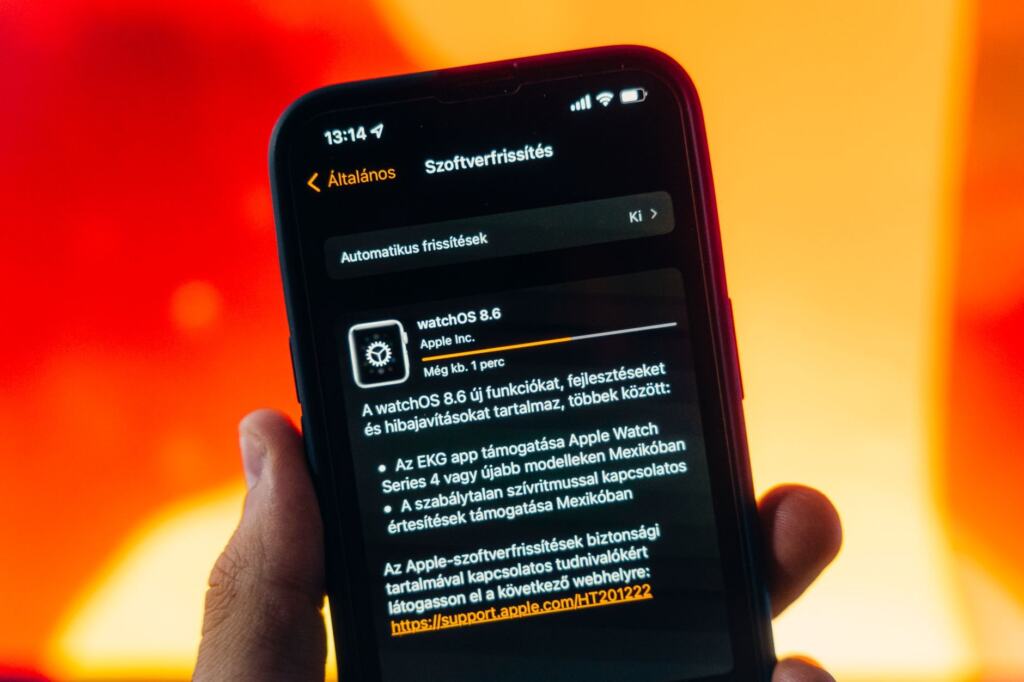
The step that most often goes wrong is the last comparison. Reading the latest version on the store page and the installed version in settings are separate actions, and a mismatch between them points to a pending update, not a removal. How recently the most recent release went out is a detail the studio’s own announcements are best placed to confirm, which is covered further below.

Compatibility on your own device
Availability and compatibility are different questions, and confusing them produces many “it was removed” reports. A listing can exist while the game still refuses to install on a given device. The Machinery.app listing shows the pattern: it states “Requires iOS 17.0 or later” for iPhone, and any listing should be read for an equivalent line.
If the stated minimum is higher than the version running on your device, there are two sensible routes. Update the system software if the device allows it. Otherwise, play on a newer device and keep the older one for other uses. Neither route involves the game being unavailable. It simply targets a different system level.
Confirming status with the studio
A store page shows what is offered today. The studio explains why it changed and what comes next. The machineers official website is the natural first stop, because it is the studio’s own statement rather than a third-party summary. The machineers development blog adds the history of releases and changes, which helps date the latest version and judge whether updates have slowed.
Past web pages can fill in gaps when current pages are thin. An archived copy of an older store page or announcement can show what the listing used to say, including earlier version notes. Treat an archived page as a record of the past rather than of today’s availability.
Press coverage is a further cross-check. Time Extension’s indies tag, for instance, collects coverage of indie puzzle games, including upcoming releases for other platforms. It shows where news about this kind of game tends to appear, and a studio announcement that gets coverage is easier to confirm.
If the game cannot be found
When the listing, the studio’s pages and your purchase history all come up empty, the practical goal changes from locating the game to protecting what is already owned. Take these actions in order of risk.
- Keep any installed copy. Do not delete an installed copy while its status is unclear, because reinstalling may not be possible.
- Check the account’s purchase history. Games bought earlier are recorded against the account, so look there before assuming the title is gone. Sign in with the account that made the purchase.
- Avoid unofficial downloads. A page offering the game outside the store is not an official source. Follow the news site’s advice to verify the website and contact the business directly before paying or installing anything.
- Ask the studio. Use the contact route on the official pages and ask plainly whether the game is still offered and which version is current.
- Look at similar games meanwhile. Indie puzzle games are covered regularly, so alternatives are easy to find while waiting for an answer.

Frequently asked questions
| Question | Answer |
|---|---|
| Does a missing App Store search result mean Machineers was removed? | No. Search results depend on the query and storefront, and similarly named apps such as Machinery.app can appear instead. Open the exact listing from an official link and check the developer name. |
| How can the latest version be confirmed? | Read the version information on the store listing, then compare it with the version shown in the app’s entry in device settings. The studio’s development blog and official site add context on recent releases. |
| Could an older device be the reason the game will not install? | Yes. Listings state a minimum system version, as the Machinery.app listing does with iOS 17.0 or later. If the device runs older software, update it or use a newer device. |
| Is it safe to download the game from another website? | Not without checking. Verify the website and contact the business directly before paying or installing, and prefer the store listing linked from the studio’s official pages. |
| Where does news about indie puzzle games appear? | Specialist outlets cover them regularly. Time Extension’s indies tag is one example. The studio’s own site and blog remain the most direct source for Machineers. |